
Sales & POS
Point of Sale (POS)
The Point of Sale (POS) screen is where you sell at the counter. Pick products, take payment, and Alfasente ERP handles the rest: it reduces your stock and posts the accounting entries for you.
Opening the POS
You can open the POS in two ways:
- From the sidebar: Inventory → POS
- From your dashboard: click Open POS
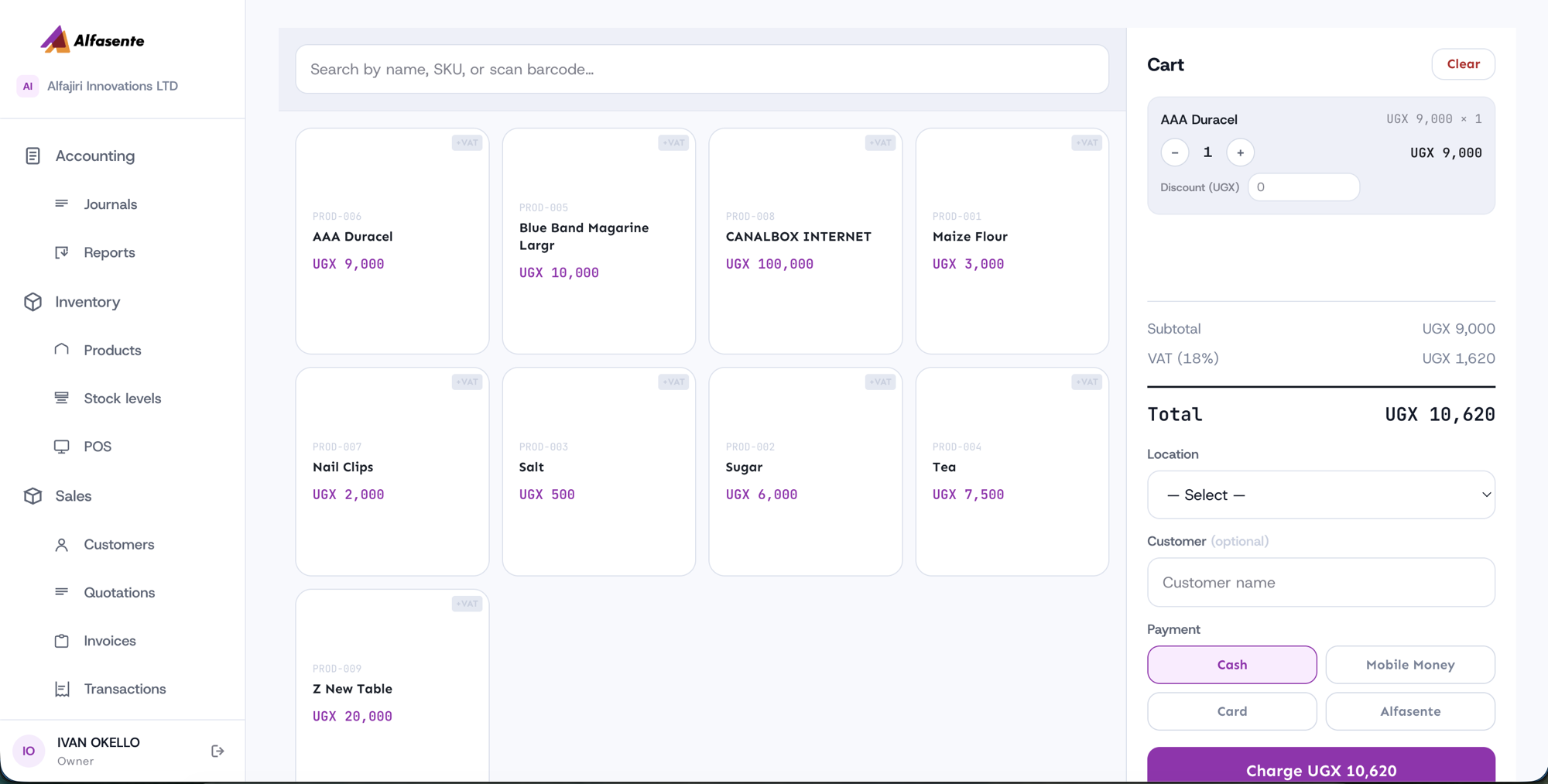
The screen at a glance
The POS is split into two sides:
- Left — the product grid. Each tile shows the item's SKU, name, price, and a "+VAT" marker where VAT applies. A search bar at the top lets you search by name or SKU, or scan a barcode.
- Right — the Cart. As you add items they appear here, ready for checkout.
Making a sale
Follow these steps to complete a sale:
- Find the product. Type in the search bar (by name or SKU) or scan its barcode. You can also just tap a tile in the grid.
- Add it to the cart. Click the product to add it to the Cart on the right.
- Adjust the line. In the cart you can:
- Change the quantity with the − and + buttons.
- Set a per-line Discount (UGX) if you're giving a price break on that item.
- Check the totals. The cart shows Subtotal, VAT (18%), and Total as you go.
- Choose a Location. Pick which store the stock comes from.
- Attach a Customer (optional). Select a customer if you want the sale linked to them.
- Set the Sale date (optional). Leave it as today for a normal sale, or pick an earlier date to record a sale that happened before — see Backdating a sale below.
- Pick a Payment method (see below).
- Complete the sale. Press Charge UGX <total> to finish.
Payment methods
Choose how the customer is paying:
| Method | What it means |
|---|---|
| Cash | The customer pays with cash at the counter. |
| Mobile Money | The customer pays by mobile money. |
| Card | The customer pays by card. |
| Alfasente | Charge the customer's mobile money directly through the built-in Alfasente payments. They receive a prompt on their phone to approve the payment. |
Backdating a sale (recording earlier sales)
Sometimes a sale happened earlier — say yesterday's counter sales weren't entered on the day — and you want to record it now but with the correct date.
Use the Sale date field in the options panel:
- It defaults to today. For a normal sale, leave it.
- To record an earlier sale, pick the day it actually happened (you can't pick a future date).
- When the date isn't today, a "Backdating to …" note appears so it's clear the next charge will be dated in the past. Press Use today to clear it.
The sale and its accounting entry both take the date you choose, so the sale shows up on the right day in your sales list and reports. If you're keying in a batch of earlier sales, the date stays set until you change it — so double-check it before charging a sale that belongs to today.
Locked periods. If you've closed and locked an accounting period, you can't backdate a sale into it — you'll be asked to use an open period instead. See Accounting periods.
Selling services
You can sell services (items with no stock) at the POS too, right alongside stocked goods. Add a haircut, a lesson, or a consultation to the cart just like any product.
What happens when you charge
When you press Charge, Alfasente ERP does the bookkeeping for you:
- For stocked goods, it reduces stock using FIFO (first-in, first-out), so your oldest stock is sold first.
- It posts the accounting entries automatically, so your books stay up to date without extra steps.
Sale numbers
Sales are numbered in sequence — SAL-00001, SAL-00002 — so a customer can read one back to you
over the phone.
Tills that have been running for a while may carry longer numbers from an older scheme. Those carry on from where they are rather than restarting, so nothing clashes with your existing receipts.
If mobile money is not connected
Charging a sale to mobile money needs your own Alfasente credentials. Until they are saved, the till explains the three steps rather than showing an error — see Connect the Payments API.
Last updated 2026-08-22