
Getting Started
Dashboard tour
The dashboard is your home screen. It gives you a quick read on how your business is doing and fast ways to get things done. Whenever you sign in, this is where you land.
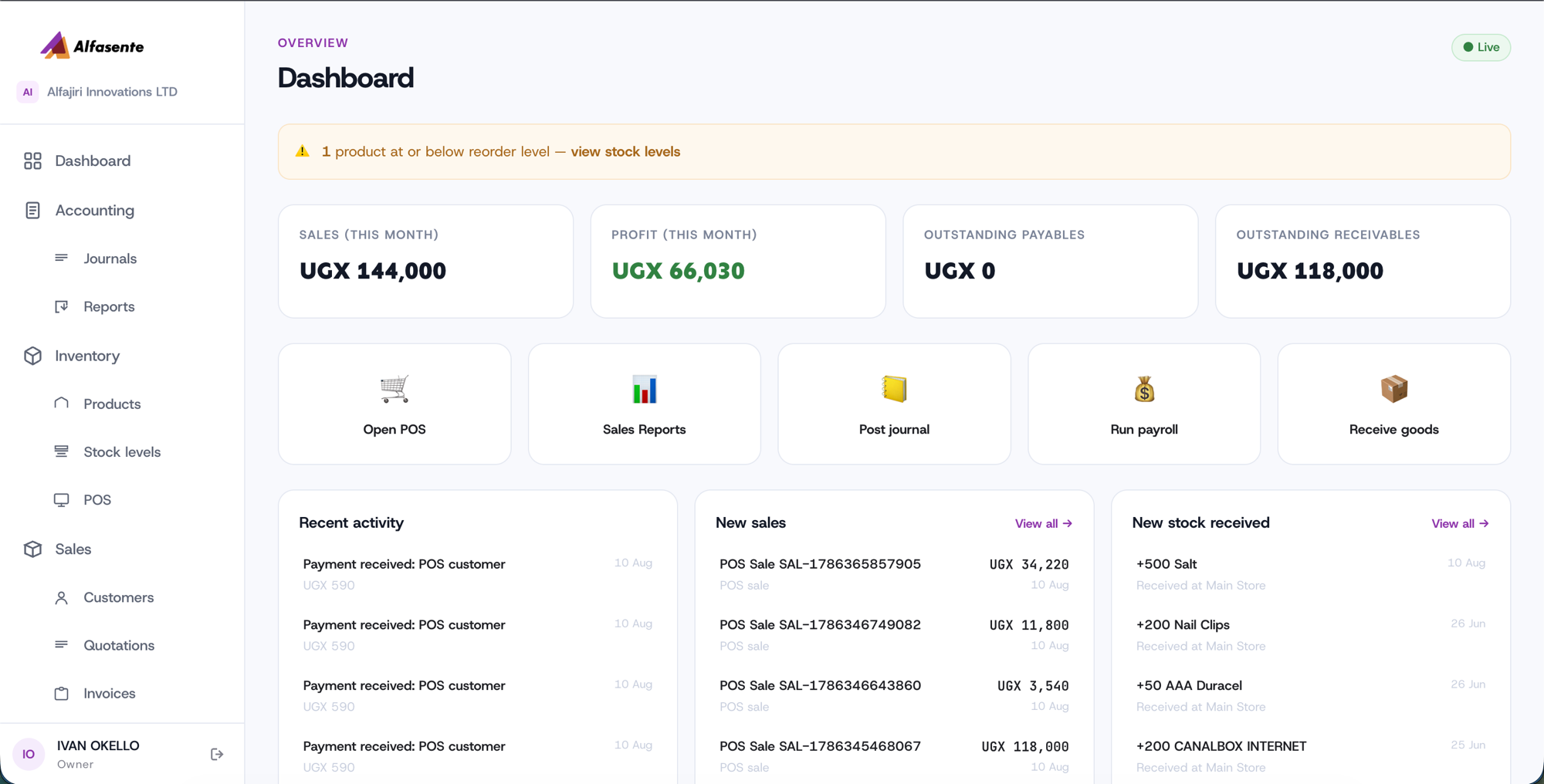
At the top: reorder alert
If any product has dropped to or below its reorder level, an alert appears across the top of the dashboard so you know it's time to restock. If nothing needs attention, you won't see it.
KPI cards
Four cards give you the numbers that matter at a glance:
| Card | What it shows |
|---|---|
| Sales (this month) | Your total sales so far this month. |
| Profit (this month) | Your profit so far this month. |
| Outstanding Payables | What you currently owe. |
| Outstanding Receivables | What you're currently owed. |
Quick actions
Quick-action buttons jump you straight to common tasks:
- Open POS — start ringing up sales.
- Sales Reports — view how sales are going.
- Post journal — make an accounting entry.
- Run payroll — pay your team.
- Receive goods — take new stock into your store.
Recent activity
Three panels keep you up to date on the latest happenings:
- Recent activity — the latest payments.
- New sales — sales that have just come in.
- New stock received — goods recently received into your store.
Getting around
The left sidebar is your main navigation. From there you can reach every module — Accounting, Inventory, Sales & POS, Payments, and HR & Payroll.
A "Live" indicator shows that your account is active.
Last updated 2026-08-11