
Financial Services
Alfasente Circle (member app)
Alfasente Circle is a free mobile app for the individual members of your SACCO or lending business. It gives each member a private view of their own account — their savings, their loans, and a simple way to ask the office for something — without them having to visit or call.
It is deliberately small and read-and-request only: no money moves through the app, and a member only ever sees their own information, never another member's.
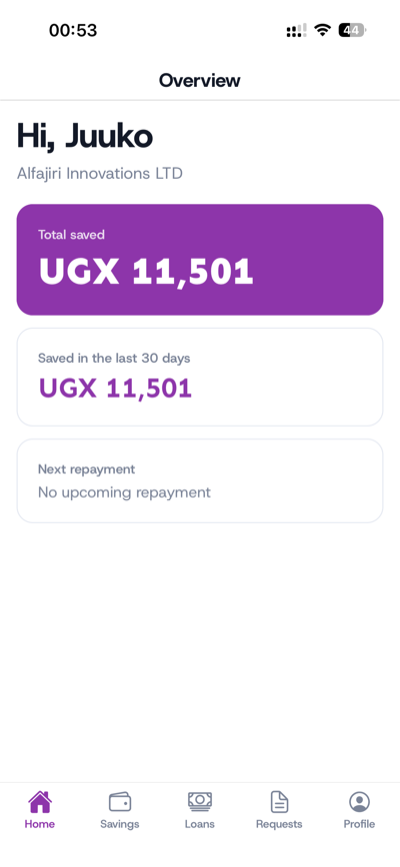
What a member can do
- See their savings — every savings account, the current balance, and a passbook-style statement of deposits and withdrawals.
- Track their loans — outstanding balance, the repayment schedule, what's due next, and the repayments recorded so far.
- A glanceable overview — total saved, how much they've saved recently, their loan balance, and their next repayment date, in plain language.
- Raise a request — a loan request, a withdrawal request, or a profile update. Each one goes to your back office for a decision, and the member sees the status (pending, approved, or declined) in the app.
How a member signs in
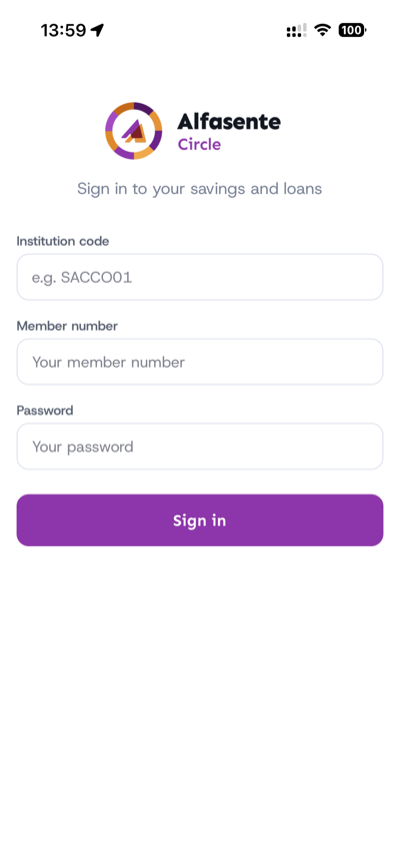
Member login is completely separate from your staff login. A member signs in with three things you give them:
- Their institution code (your business's short code).
- Their member number.
- A password you issue from the back office.
Issuing and managing member logins
You control member access from the office. On any member's profile in Financial Services → Members, open the App login section:
- Issue login — creates the member's login and shows a one-time password. If the member has an email address on file, the login details (institution code, member number, and temporary password) are emailed to them automatically; the password is still shown on screen once as a fallback for members without email. Either way, the member is required to set a new password the first time they sign in.
- Reset password — issues a fresh temporary password if they forget theirs (again emailed if you have their address, and again requiring a change on next sign-in).
- Revoke login — removes their access. Their records are kept; only the ability to sign in is removed.
Add a member's email under Financial Services → Members when creating or editing them, so their login can be sent straight to their inbox. Members can also change their password any time from Profile → Change password in the app.
Reviewing member requests
Requests raised in the app arrive in Financial Services → Requests, where your staff can approve or decline each one. Approving or declining only records the decision and notifies the member — any actual money movement (disbursing a loan, paying out a withdrawal) stays a step your staff do in the module, the normal way.
Where to go next
- Financial Services Overview — the module at a glance.
- Members — build your member registry (where you issue logins).
- Loan lifecycle — how a loan moves from application to repayment.
What a loan officer sees on a member
Open a member from the officer's member list and their loans are at the top: the loan number, the product, the status and what is still outstanding. Tap one to see the principal, outstanding principal and interest, and the date it was disbursed.
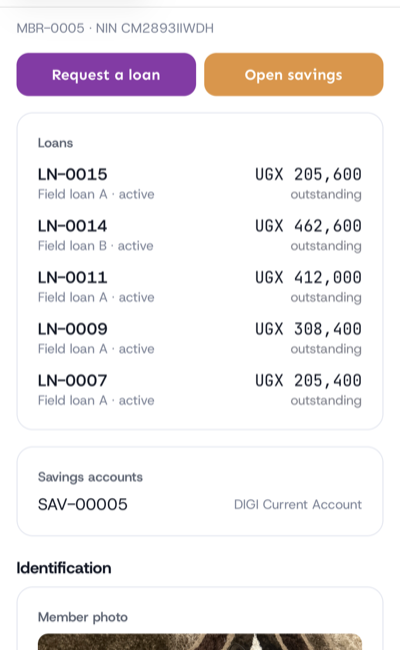
It opens in place rather than on another screen, because the usual reason to look is that the member is standing in front of you asking how much they still owe.
Below that you can enrol them — photo, ID, signature and location — request a loan, or open a savings account.
Last updated 2026-08-22