
Inventory
Stock Levels
The Stock Levels page shows how much stock you're holding. Find it under Inventory → Stock levels. It has two views you switch between with the tabs near the top: By product and Stock aging.
By product (default)
This view shows one row per product, so an item you received on several different days appears as a single line — not one row per delivery. Each row shows:
| Column | Notes |
|---|---|
| Product | The item. |
| SKU | Its stock-keeping code. |
| Unit | For example pcs, box, set. |
| One column per store | How many units are on hand in each of your stores, side by side. |
| Total | The total on hand across every store. |
| Value (cost) | What that stock is worth at cost. |
Search for an item
Use the search box to find a product by name or SKU — handy when your catalogue is long and you just want one item's numbers.
See one store on its own
Use the store dropdown (next to the search box) to switch between All stores and any single store. Pick a store and the table shows just that store's stock; choose All stores to see every store side by side again.
Reorder alert
A red banner lists any product that has fallen to or below its reorder level, so you know what to restock before you run out. It appears above both tabs.
Stock aging
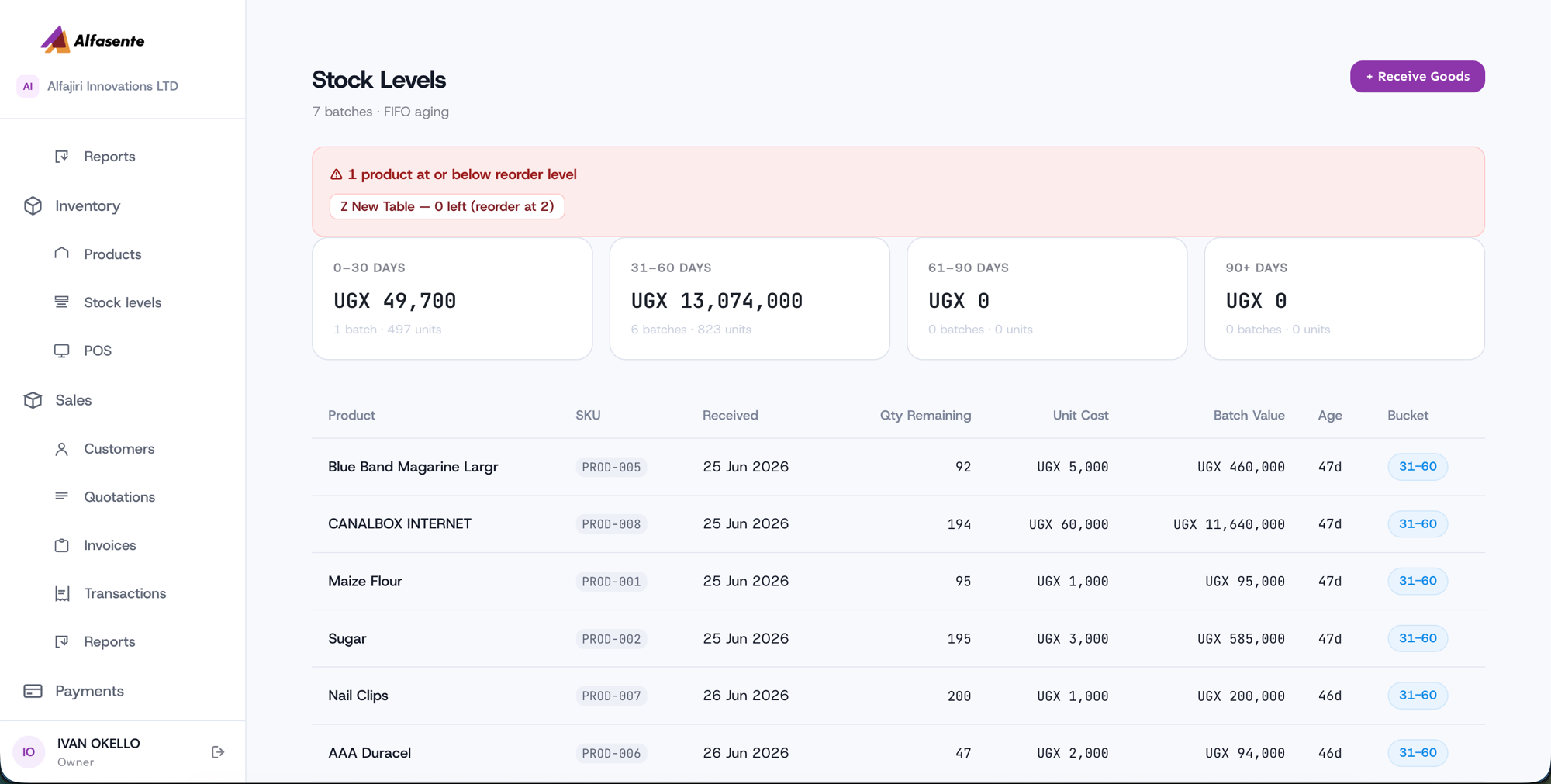
The Stock aging tab groups your stock by how long each batch has been on hand, using FIFO (first-in, first-out):
| Bucket | Age of stock |
|---|---|
| 0–30 | 0 to 30 days |
| 31–60 | 31 to 60 days |
| 61–90 | 61 to 90 days |
| 90+ | Older than 90 days |
Each bucket shows a batch count, units, and value, so you can spot slow-moving stock that's been sitting too long. Below the buckets, a table lists every batch with its received date, quantity remaining, unit cost, value, and age.
Adding and moving stock
Two actions sit at the top of the page:
- + Receive Goods — record new goods coming into a store. See Receiving Stock.
- ⇄ Transfer Stock — move stock from one store to another. See Transferring Stock.
- Correct — on each product row, once you have filtered to a single store. Fixes a wrong count after a miscount, breakage or a stock-take. See Correcting Stock.
What takes stock off the shelf
| A POS sale | Immediately, from the till's store |
| Approving an invoice | From the store chosen on the invoice |
| A stock transfer | Out of one store, into another |
| A stock adjustment | Wherever you record it. See Correcting Stock. |
Both sales routes take the oldest batch first, so the cost recorded against a sale is what those particular units actually cost you.
When the number here is wrong
It happens: someone types 50 instead of 5, a sack splits, or the shelf simply does not match at month end. Filter to a single store and each row gets a Correct button. You enter what is really on the shelf and why; the change is logged against your name and posted to your accounts, so your Stock figure keeps matching your stock. See Correcting Stock.
Last updated 2026-08-27