
HR
Leave
Use Leave to record when your team members are away and to keep track of their requests. To get there, open HR & Payroll → Leave.
Requests are grouped by their status so you can see what needs attention at a glance:
- Pending — filed but not yet decided.
- Approved — signed off and confirmed.
- Other statuses as applicable.
Recording leave
Click Record leave to file a request.
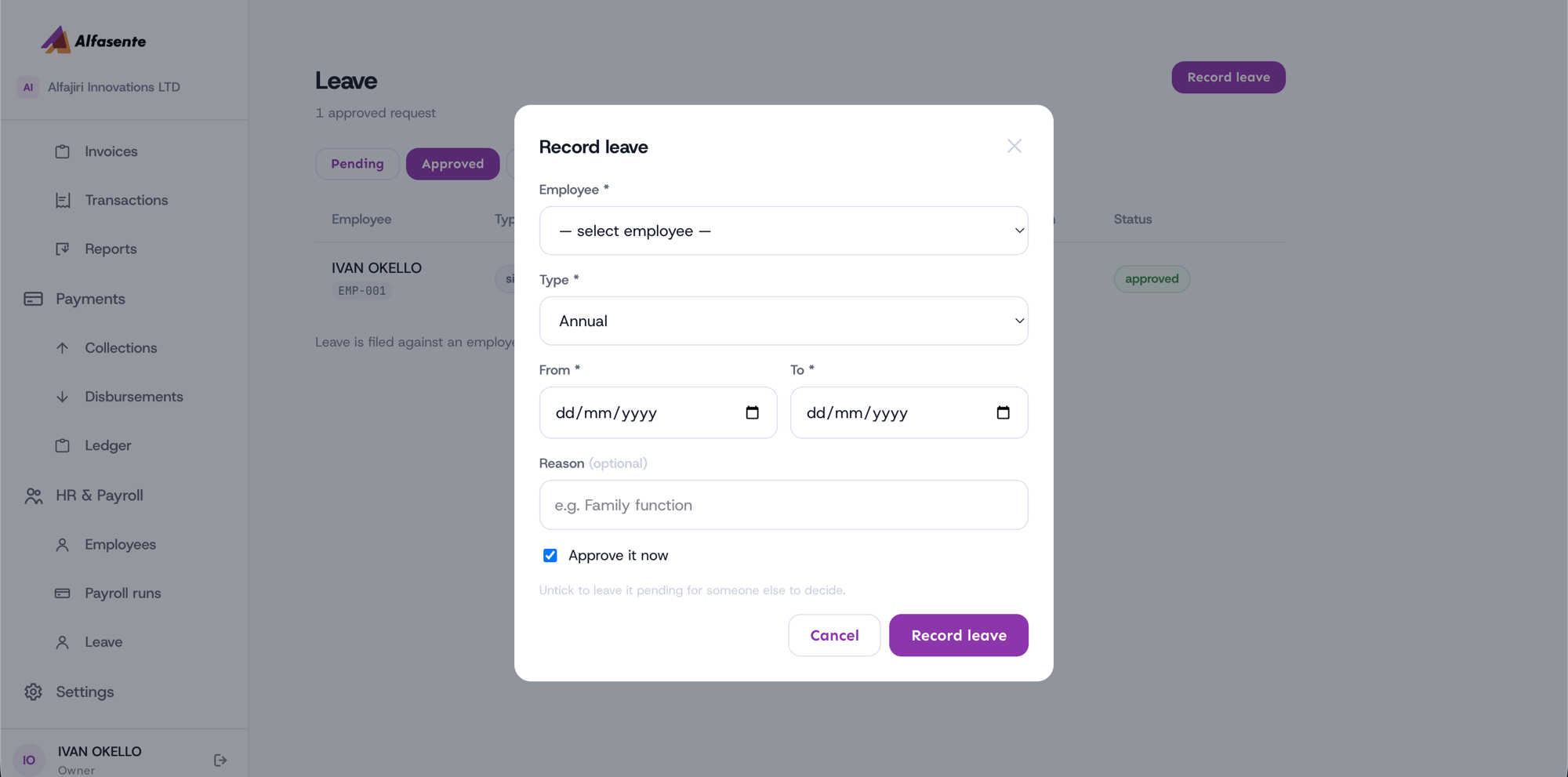
Fill in the request:
| Field | What to enter |
|---|---|
| Employee | The team member the leave is for |
| Type | The kind of leave (for example, Annual, or another leave type) |
| From | The first day of leave |
| To | The last day of leave |
| Reason | An optional note explaining the request |
Approve now or leave it pending
The form has an "Approve it now" checkbox:
- Tick it to approve the leave immediately.
- Leave it unticked to file the request as pending, so someone else can review and decide later.
This lets you either sign off leave yourself on the spot, or route it to another person for approval.
Where leave shows up
Leave is filed against a specific employee. Once recorded, it also appears on that employee's detail page under their Leave Requests, so you always have a full picture of who has taken time off. See Employees for the detail page.
Last updated 2026-08-11