
Payroll
Running payroll
A payroll run works out what each employee earns and what you owe them for a period — their gross pay, statutory deductions, and the net pay that lands in their account. To get there, open HR & Payroll → Payroll runs.
Creating a run
Click + New Payroll Run to open the New Payroll Run form.
Set up the run:
| Field | What to enter |
|---|---|
| Period Name | A name for the pay period (for example, "August 2026") |
| Period Start | The first day of the period |
| Period End | The last day of the period |
All active employees are added to the run automatically, so you don't need to add people one by one.
Choosing statutory deductions
Before running, you choose which statutory deductions apply, using checkboxes:
- PAYE — income tax.
- NSSF — social security. The employee contributes 10%, and the employer also makes a contribution on top.
- LST — Local Service Tax.
The run then computes each employee's gross pay, deductions, and net pay.
The payroll lifecycle
A run moves through a few stages. Approval is required before you can pay, so nothing goes out until the figures have been signed off.
- Create the run — set the period; active employees are added automatically.
- Review the figures — check gross pay, deductions, and net pay. A run shows totals (for example, NSSF and Net Pay) and a Status (for example, draft, approved, or paid).
- Approve — sign the run off. Approval is required before paying.
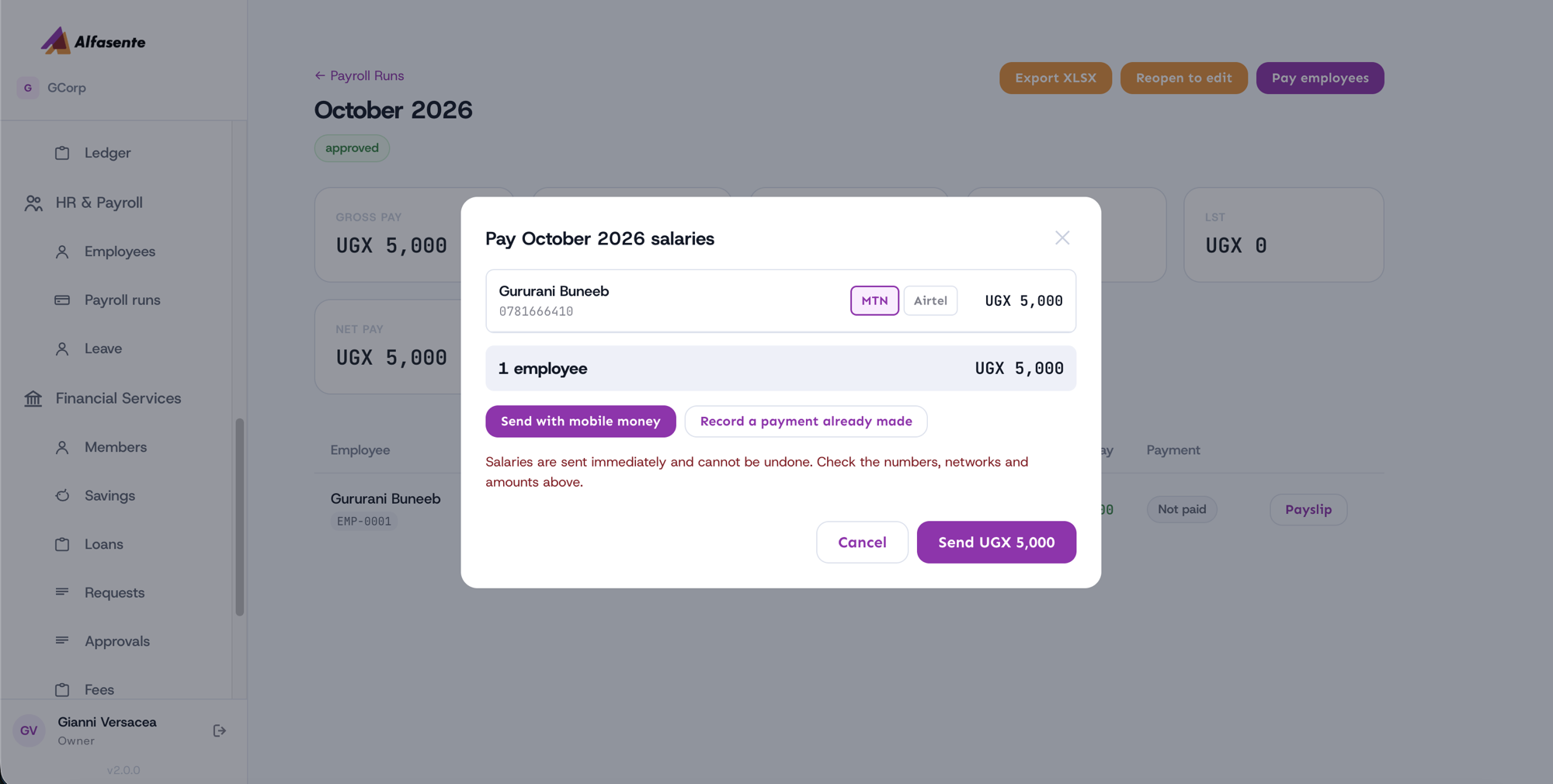
- Pay employees — net salaries can be paid out directly via mobile money using the Payments module.
Recalculating a run
If an employee's details change before a run is paid, you can recalculate the run so it uses the updated figures.
Who can approve and pay
Only authorised roles — Owner and Accountant — can approve a run and pay employees. This keeps control over money leaving the business.
After paying
Once a run is completed, each employee gets a payslip you can download. See Payslips.
Paying outside Alfasente
Not every salary goes out by mobile money. Some staff are paid in cash, some by bank transfer, some from the owner's own phone.
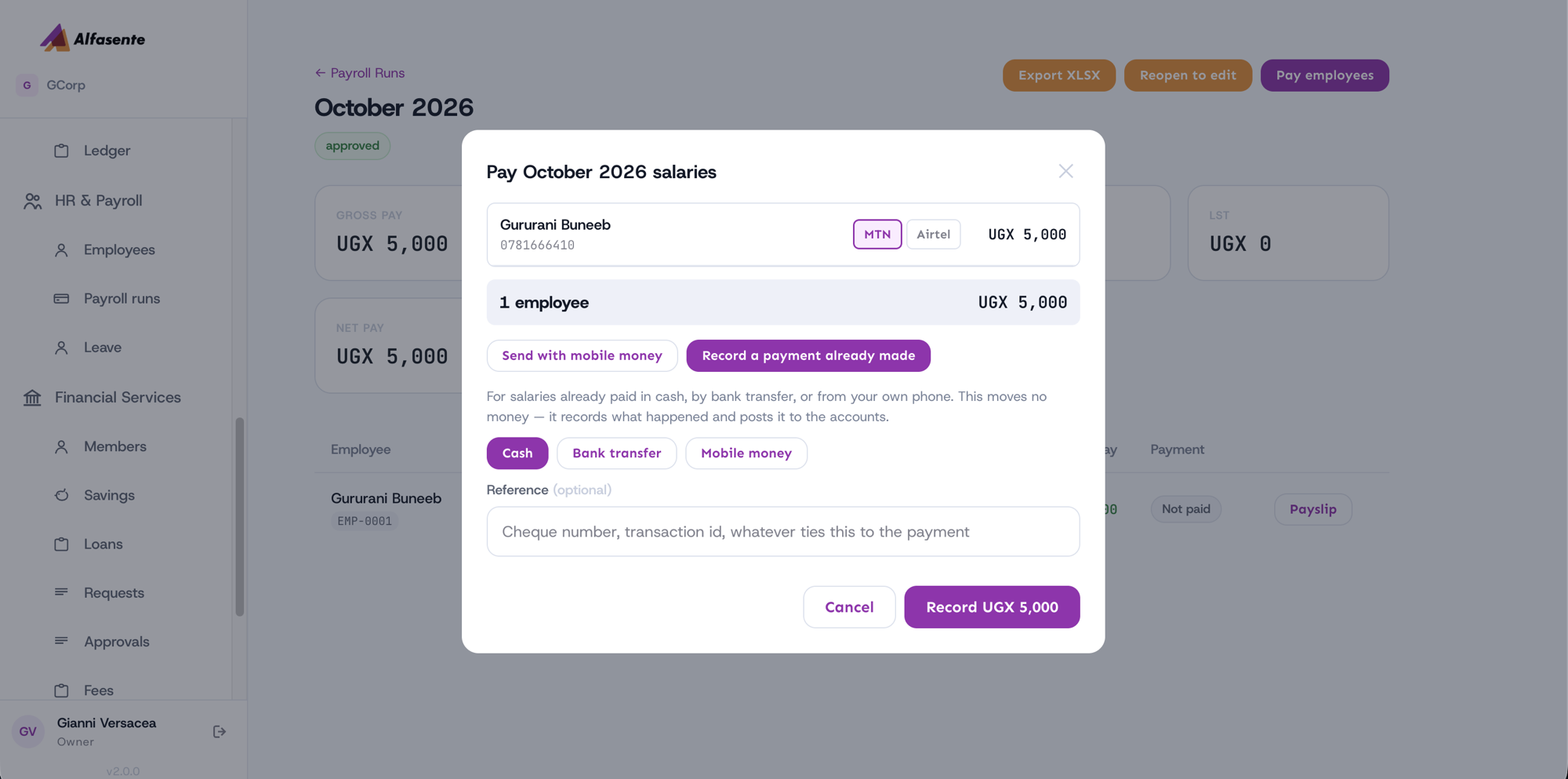
Press Pay employees, switch to Record a payment already made, choose Cash, Bank transfer or Mobile money, add a reference if you have one, and record it. The lines are marked paid and the books are posted exactly as if the money had gone through the ERP.
This moves no money. It records what already happened.
An employee with no mobile money number can still be recorded this way — a salary handed over in cash has no number. The Send option still needs one, because it has to know where to send it.
Last updated 2026-08-22