
Getting Started
Users and roles
As the Owner, you can invite your team and decide what each person is allowed to do. You manage everyone from one place: Settings → Users & Access.
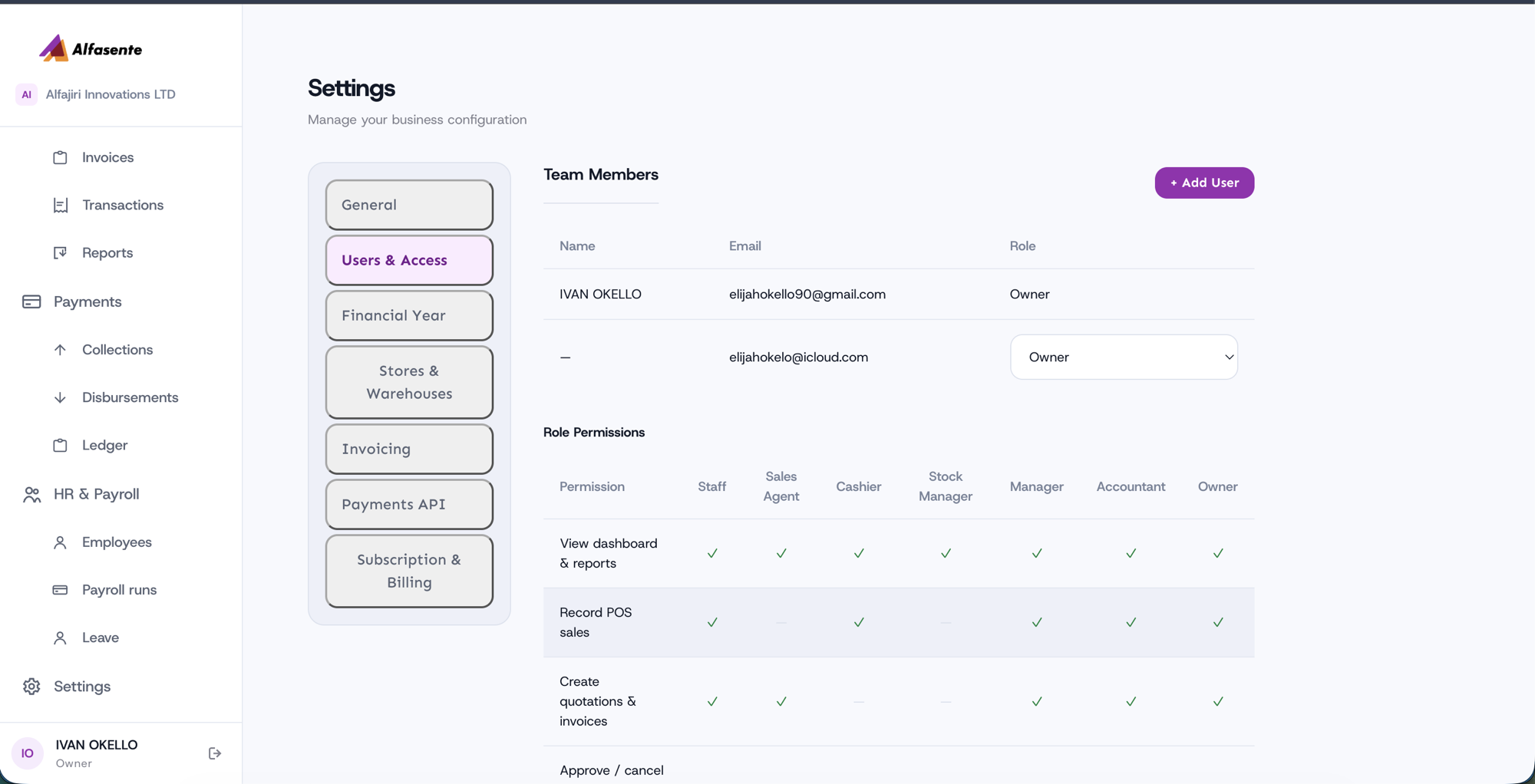
Adding a team member
- Go to Settings → Users & Access.
- Choose Add User and enter the person's email.
- Assign them a role.
The role you choose decides what that person can see and do in Alfasente ERP.
The roles
Alfasente ERP uses role-based permissions. Here's what each role is for:
| Role | What it's for |
|---|---|
| Owner | Full control, including billing and salaries. |
| Accountant | Accounting and finance work. |
| Manager | Broad, day-to-day operational control. |
| Stock Manager | Inventory and receiving goods. |
| Cashier | POS sales. |
| Sales Agent | Quotations, invoices, and customers. |
| Staff | Day-to-day basics. |
Only the Owner has full control of the business.
How permissions work
Permissions are tied to roles, so you don't set them person by person. The Role Permissions grid on the Users & Access screen shows which roles can do what. A few examples:
- View dashboard & reports — available to everyone.
- Record POS sales — Staff, Cashier, Manager, Accountant, and Owner.
- Create quotations & invoices — Staff, Sales Agent, Manager, Accountant, and Owner.
- Approve / cancel — reserved for higher roles.
As a rule of thumb, higher roles can do more, and sensitive actions like billing and salaries stay with the Owner. Check the grid on the screen to see the full, up-to-date picture for each role.
Tip
Give each person the role that matches their job — no more than they need. You can always adjust roles later as your team grows.
Last updated 2026-08-11