
HR
Employee numbers
Leave Employee number blank and one is created on save, or press Generate, or type your
own. Generate continues the numbering you already use — a book reading EMP-001 carries on at
EMP-002, keeping your three digits rather than imposing four.
Employees
Your employees are the people you pay. Adding them here means Alfasente ERP can run payroll for them, keep their details in one place, and pay their net salaries directly. To get there, open HR & Payroll → Employees.
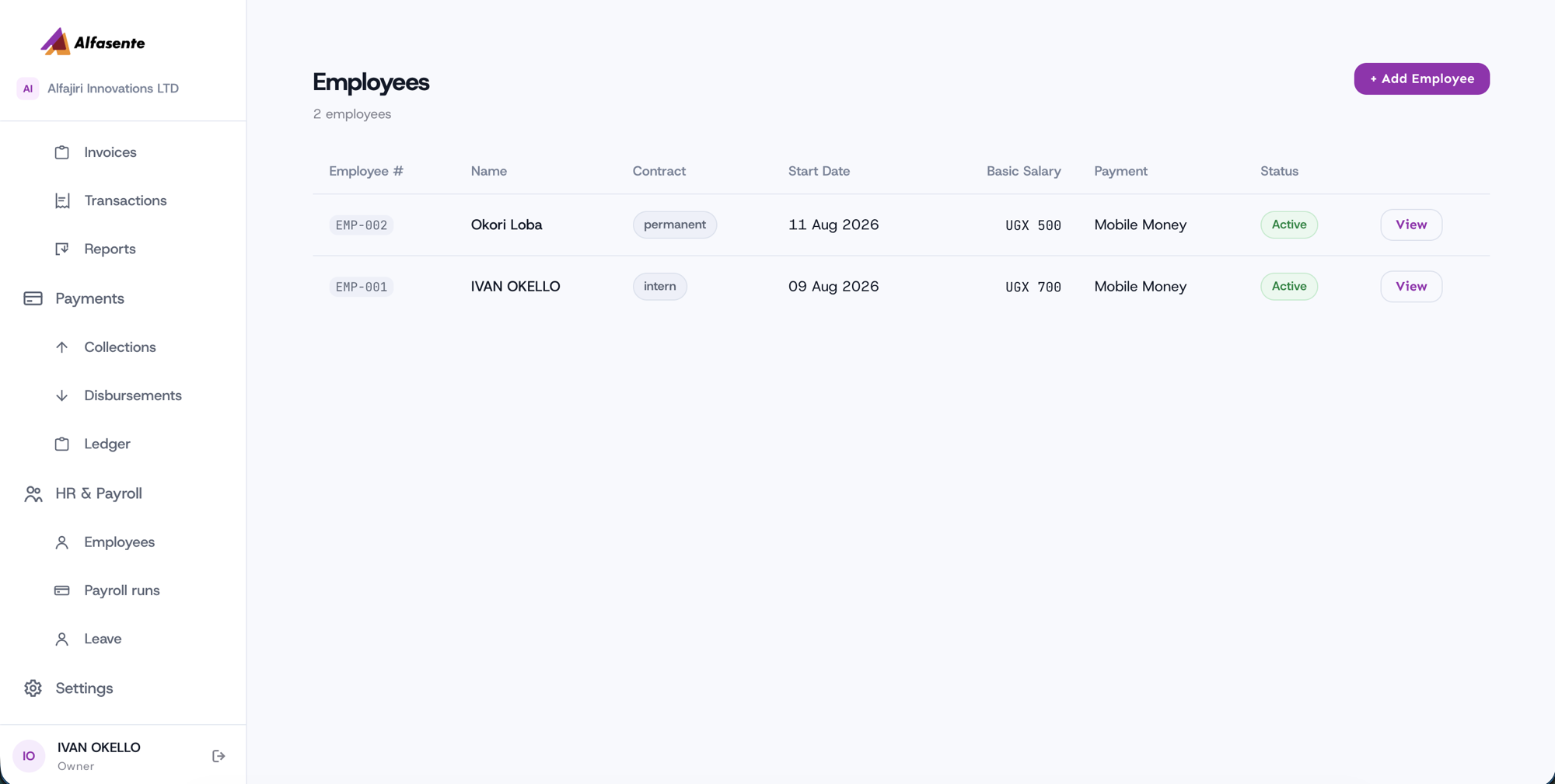
The employees list
Every employee you've added appears in the list. For each person you can see:
| Column | What it shows |
|---|---|
| Employee # | A unique reference for the employee (for example, EMP-001) |
| Name | The employee's full name |
| Contract | The type of engagement (for example, permanent or intern) |
| Start Date | The date they started |
| Basic Salary | Their basic monthly salary in UGX |
| Payment | How they get paid (for example, Mobile Money) |
| Status | Whether the record is Active |
Each row has a View button that opens the employee's full details.
Adding an employee
- Open HR & Payroll → Employees.
- Click + Add Employee.
- Fill in the employee's personal details, salary, and how you want to pay them.
- Save.
Once saved, the employee shows up in the list and is automatically included when you run payroll (see Running payroll).
Payment method
You can pay each employee by Mobile Money or into a bank account. Choosing Mobile Money lets payroll pay them directly through the Payments module when you pay out a run. Make sure the payment details are correct so salaries reach the right place.
The employee detail page
Click View on any employee to open their detail page. This is where you see everything about that person and make changes.
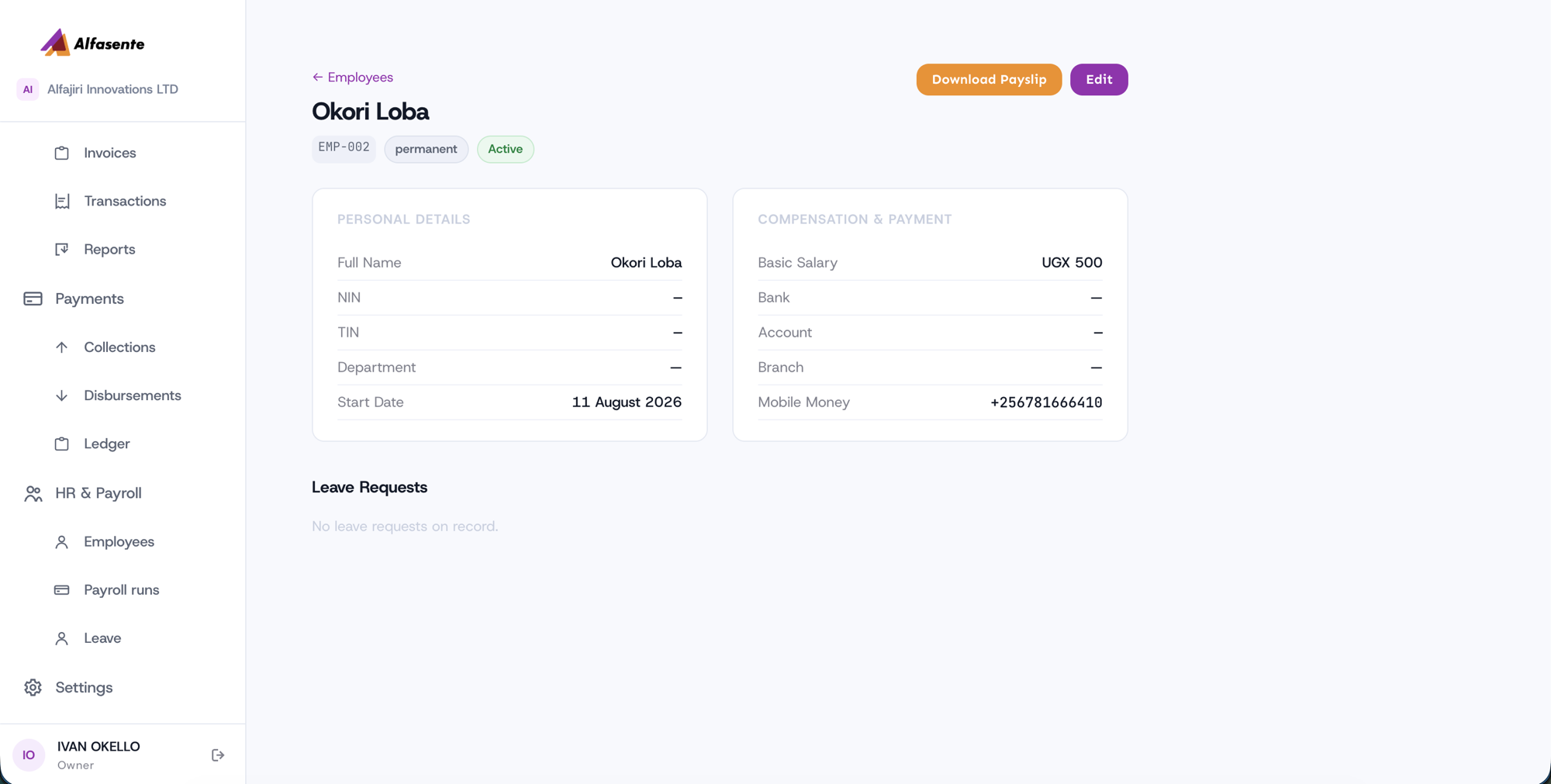
Personal details
- Full Name
- NIN — National Identification Number
- TIN — Tax Identification Number
- Department
- Start Date
Compensation & Payment
- Basic Salary
- Bank, Account, and Branch (for bank payments)
- Mobile Money number (for mobile money payments)
Leave requests
The detail page also lists the employee's Leave Requests, so you can see the leave filed against them. To record new leave, see Leave.
Edit and download
From the detail page you can:
- Edit — update the employee's details, salary, or payment information.
- Download Payslip — get the employee's payslip as a PDF (see Payslips).
Tip: Keep salary and payment details up to date. If you change them before a payroll run is paid, you can recalculate the run so it uses the latest figures.
Last updated 2026-08-22