
Mobile App
Alfasente POS
Alfasente ERP isn't only in your browser — there's a free mobile app that puts your shop in your pocket. It's built for selling on the move: at the counter, on a market stall, or out doing deliveries. The app is available on Google Play and the App Store.
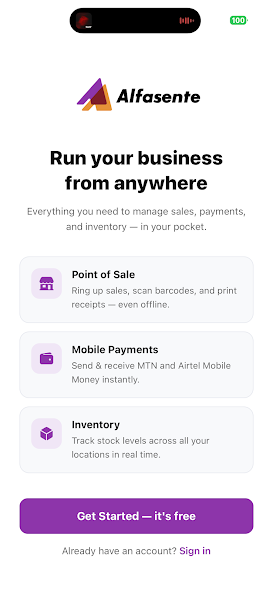
What you can do
| Feature | What it does |
|---|---|
| Point of Sale | Ring up sales, search or scan barcodes, and share receipts — even offline. |
| Mobile Payments | Take MTN and Airtel Mobile Money payments from customers, right at checkout. |
| Stock | See what you hold, add products, receive a delivery, and correct a wrong count. |
| Sales | Add customers, raise quotations and invoices, take payment, and send the PDF. |
| Stores | Owners, managers and stock managers can set up a new store or branch. |
It's the same business, the same data. Anything you sell on the app updates your stock and your accounts exactly like the web ERP — because it's the same account behind both.
Getting the app
- Open Google Play (Android) or the App Store (iPhone) and search for Alfasente POS.
- Install it, then open it.
- Tap Get Started — it's free if you're new, or Sign in if you already have an Alfasente ERP account.
Signing in
Sign in with the same email and password you use on the web, or tap Continue with Google. If you don't have an account yet, tap Create one to start your free trial.
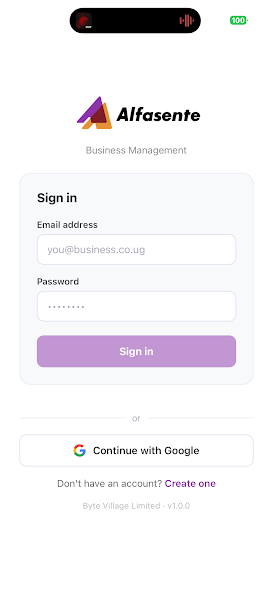
Once you're in, you land on the POS screen, ready to sell. Your products, prices, and stock are already there — they sync from your Alfasente ERP account.
Works offline
The Point of Sale keeps working when the network drops, so you never miss a sale. Sales made offline sync back to your account once you're connected again.
The four tabs
| Tab | What lives there |
|---|---|
| POS | The till. Scan or tap products, take payment, print or share the receipt. |
| Stock | Your catalogue, deliveries and stock corrections. See Stock on the mobile app. |
| Sales | Customers, quotations, invoices and receipts. See Sales on the mobile app. |
| Account | Who you are signed in as, your stores, and signing out. |
Setting up a store from the phone
Stock is held per store, so a business opening a second branch cannot record anything against it until the store exists. Under Account → Stores & warehouses you can add one: a name and whether it is a store, warehouse or branch. Available to owners, managers and stock managers.
Last updated 2026-08-27